
How to add registration form to storefront
Add the Lumi Registration Form block to a Shopify page and connect your active form.
1. Copy your Form ID
First create a registration form, save it, and set its status to Active.
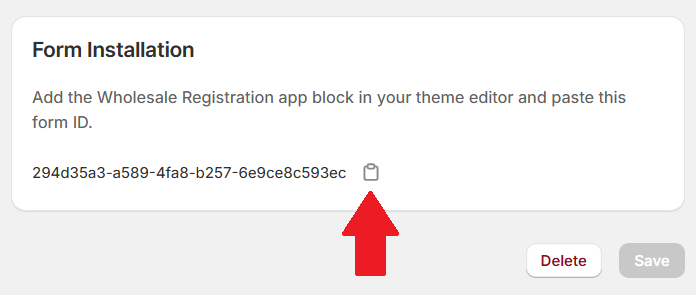
Open the saved form’s Configuration tab. Under Form Installation, click the copy icon beside the Form ID.
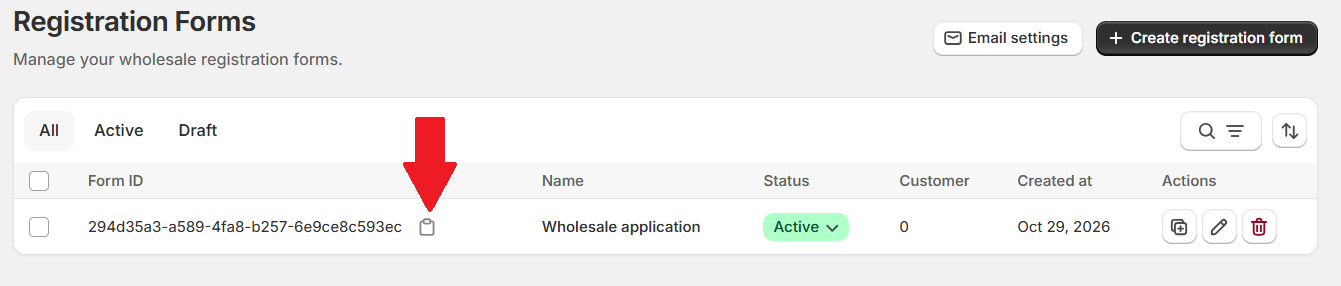
You can also copy the ID directly from the Registration Forms table.
2. Open the theme editor
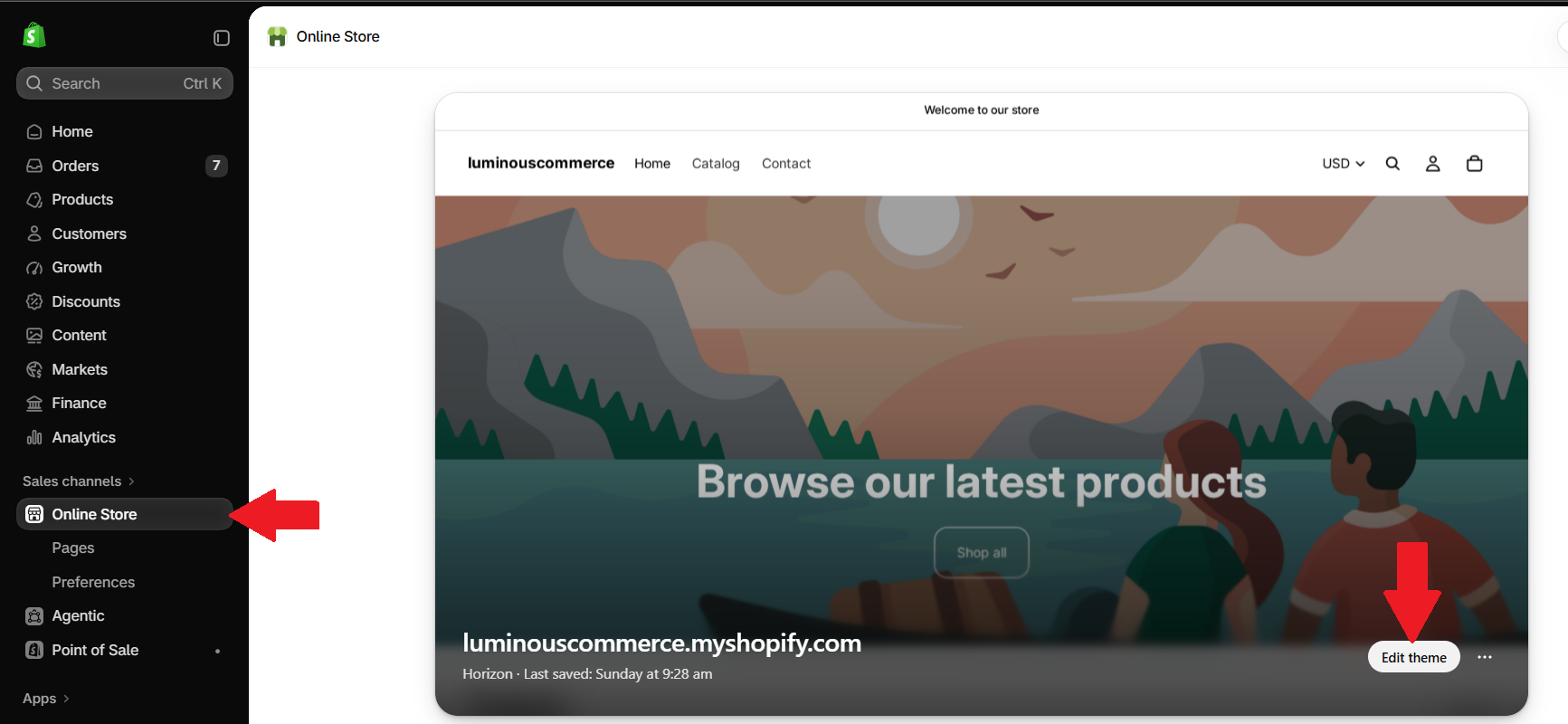
In Shopify Admin, go to Online Store Themes, then click Edit theme for the theme where you want to display the form.
3. Select the page template
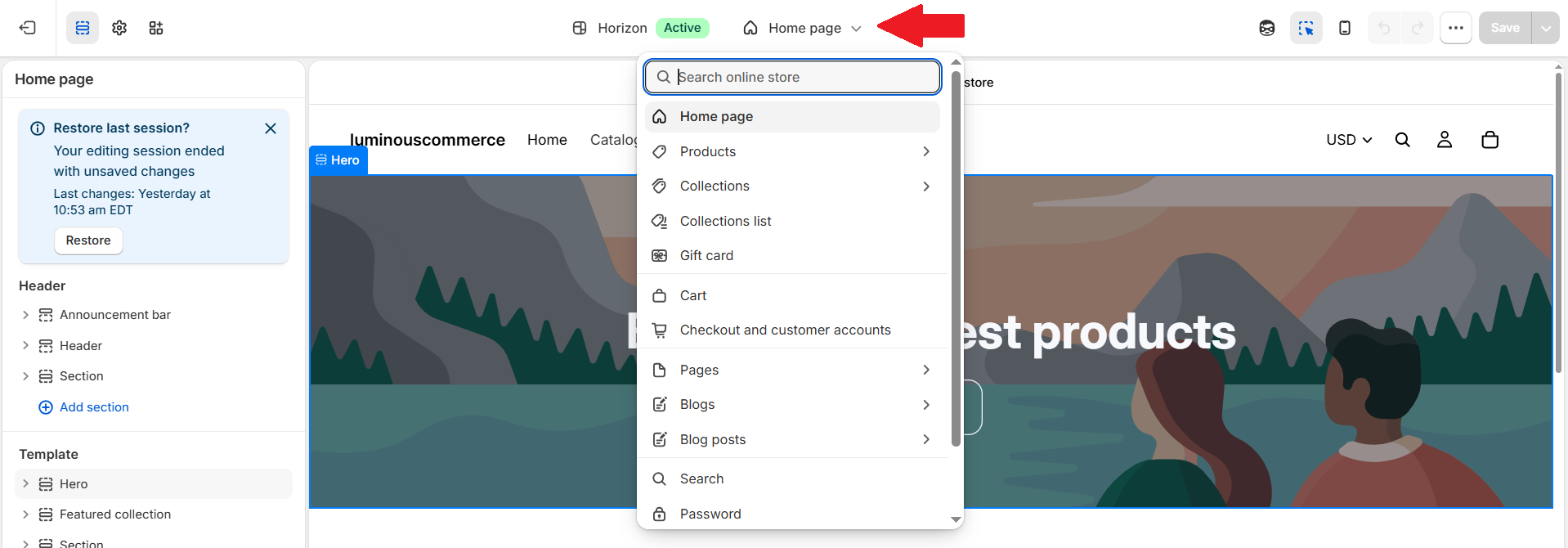
Use the page selector at the top of the theme editor, choose Pages, then select the page template where you want to add the form.
If you want to use a new page, create it in Shopify under Online Store Pages first.
4. Add the registration block
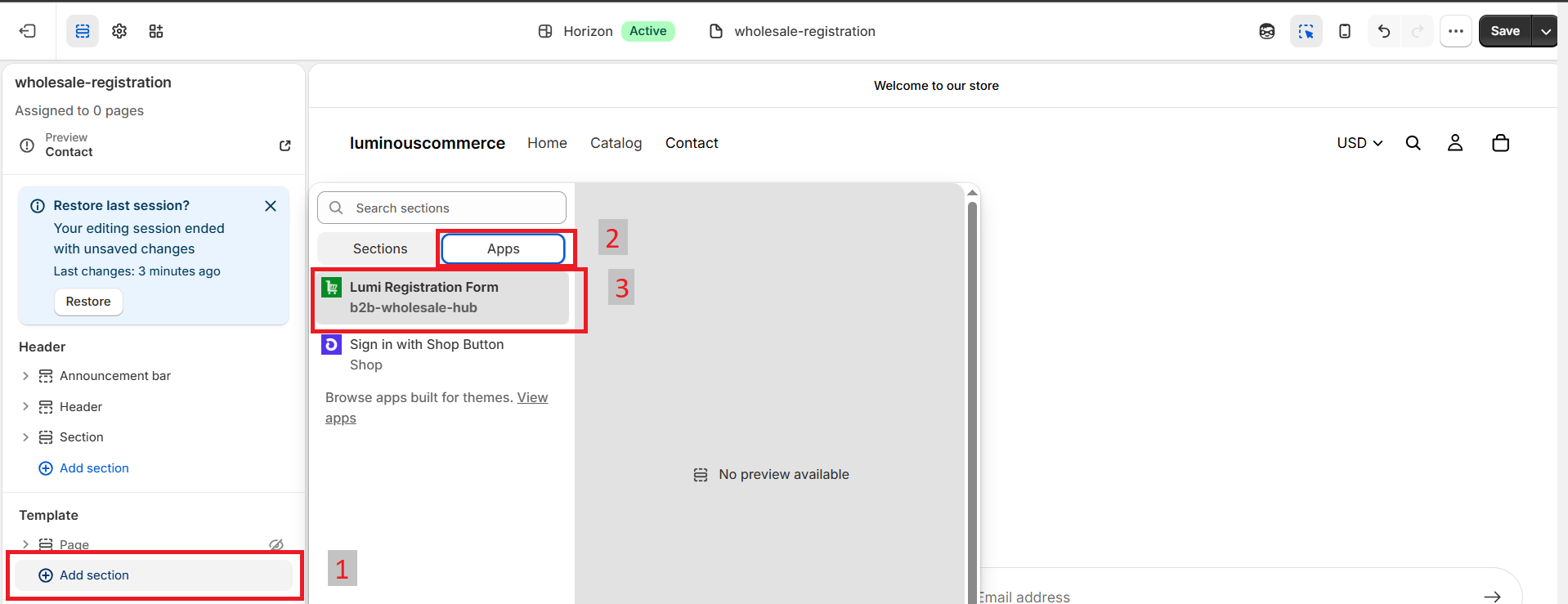
- Under Template in the left sidebar, click Add section.
- Open the Apps tab.
- Select Lumi Registration Form.
5. Paste the Form ID
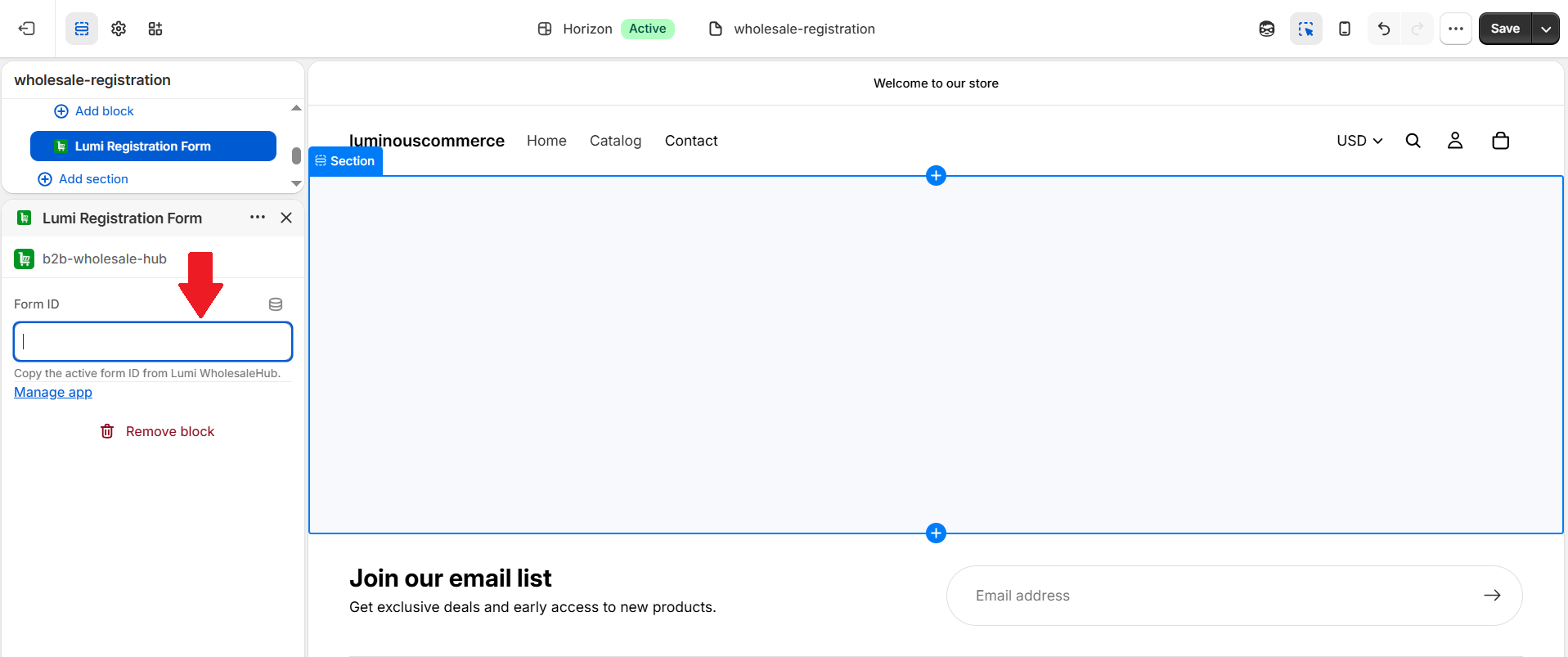
Select the new Lumi Registration Form block and paste the copied ID into Form ID. This connects the block to your saved form.
6. Save the template
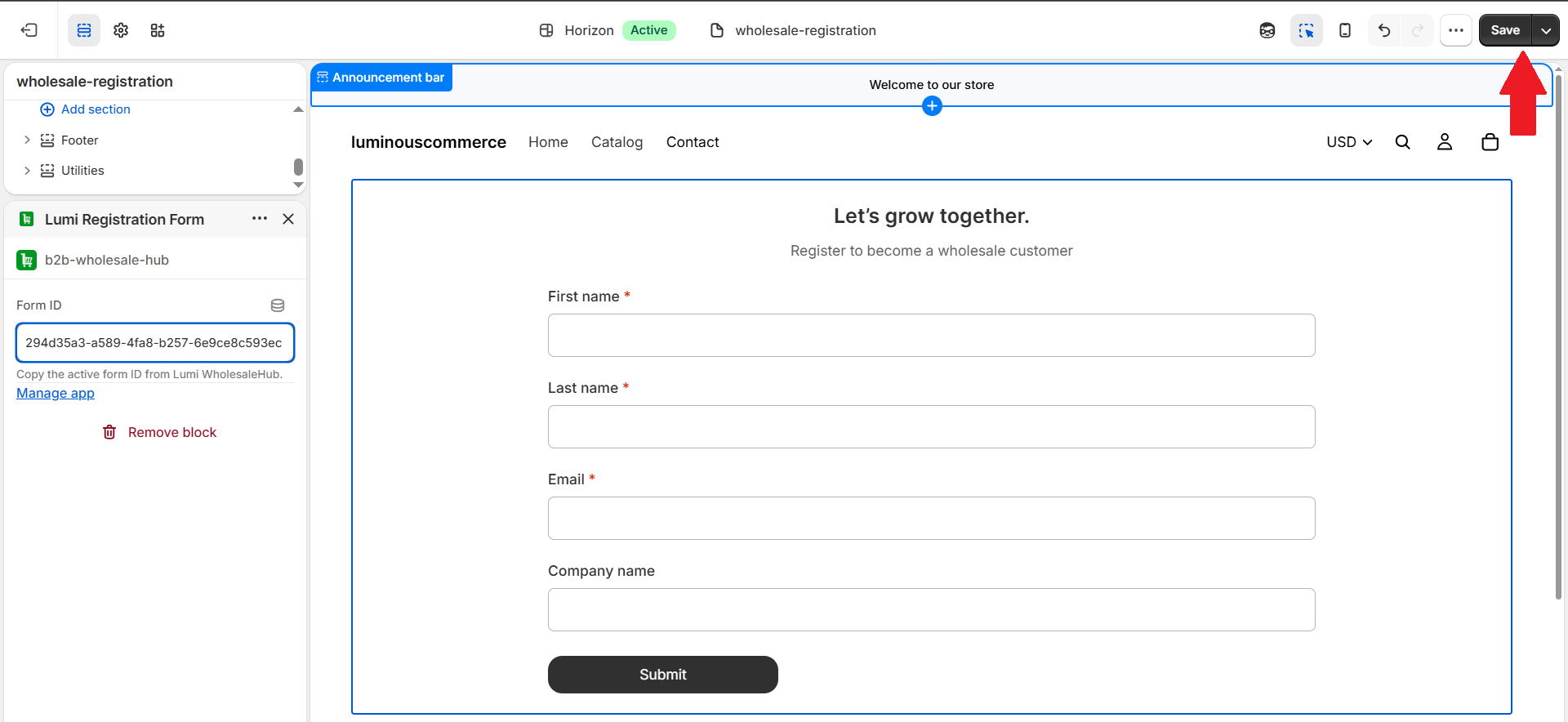
The form should appear in the preview. Move the block to the desired position and click Shopify’s Save button.
Next, configure registration emails for new applications and approval updates.