
How to create order limits
Set quantity or spend limits for an order, collection, or product, and choose which customers they apply to.
1. Create a limit rule
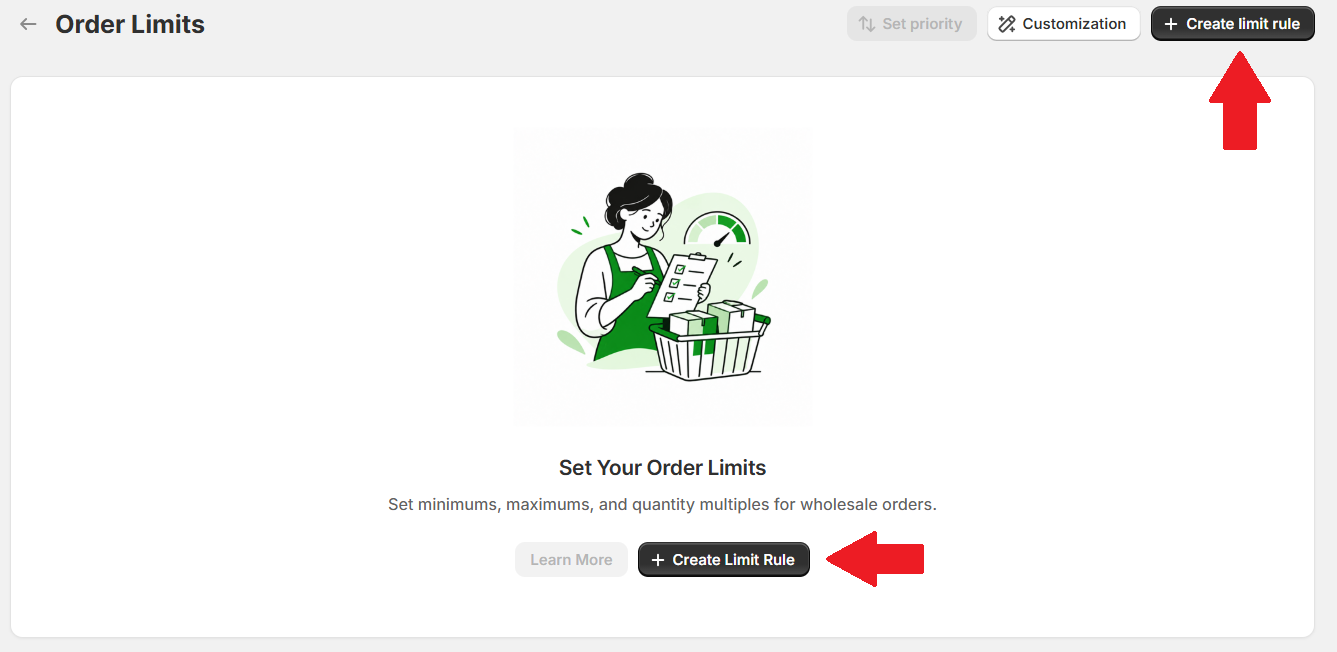
Open Order Management Order Limits in Lumi, then select Create limit rule. If this is your first rule, you can also use the button in the center of the page.
2. Fill in General Information
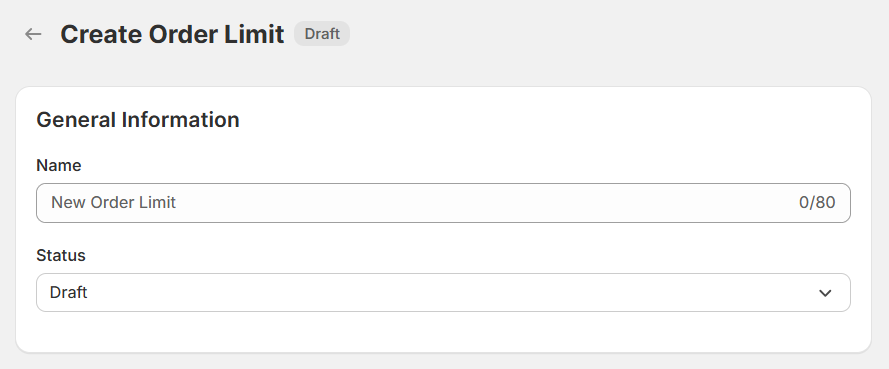
Give the rule a clear name and choose its status:
- Name: use something recognizable, such as Wholesale minimum order or Product pack sizes.
- Status: choose how the rule is saved:
- Draft: saves the rule without publishing it.
- Active: saves and publishes the rule. Any schedule you set still applies.
3. Choose eligible customers
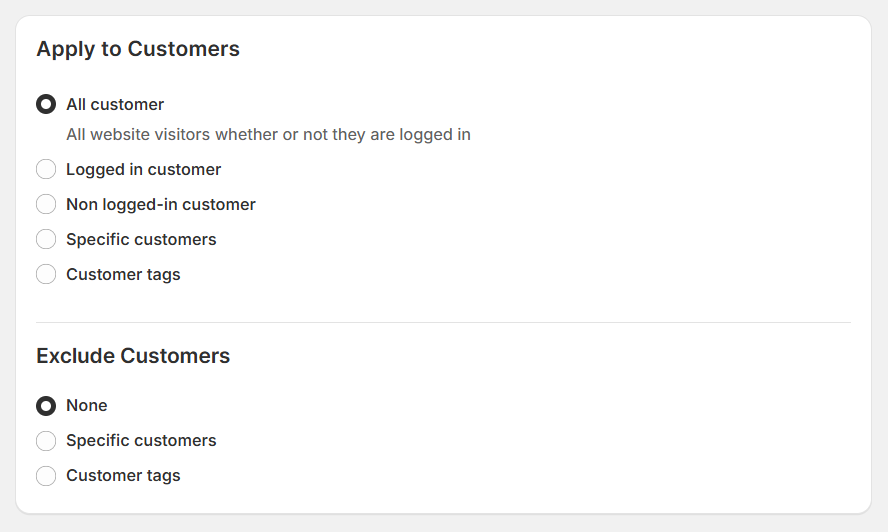
Apply to Customers
Select the audience for this rule:
- All customer: includes visitors whether or not they are signed in.
- Logged in customer: applies to signed-in customers.
- Non logged-in customer: applies to visitors who are not signed in.
- Specific customers: lets you select individual customers.
- Customer tags: lets you select a tagged customer group, such as wholesale buyers.
After choosing Specific customers or Customer tags, select the customers or tags you want to include.
Exclude Customers
Under Exclude Customers, leave None selected if you do not need exceptions. Otherwise, select specific customers or customer tags to exclude. An excluded customer will not be subject to this rule’s limits, even if they match the audience above.
4. Choose eligible markets
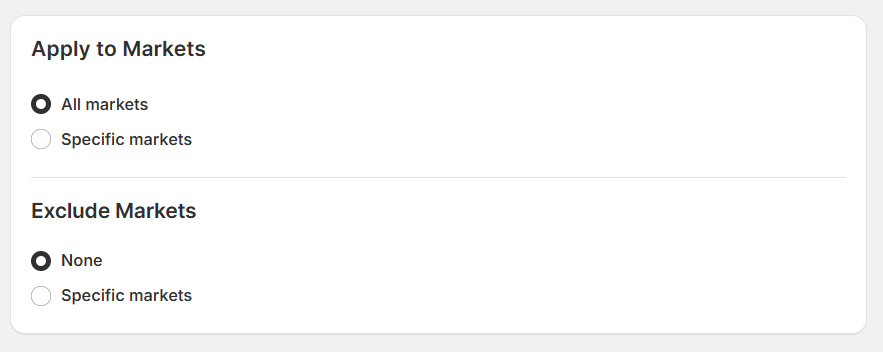
Apply to Markets
Select All markets to make the rule available across your markets, or choose Specific markets and select where it should apply.
Exclude Markets
Keep None or select the markets you want to leave out. Make sure the intended customer’s market is included and not excluded.
5. Choose a limit level
Under Limit Level, select how items should be counted. Choose the option that fits your rule; the examples below show the three alternatives.
Order level
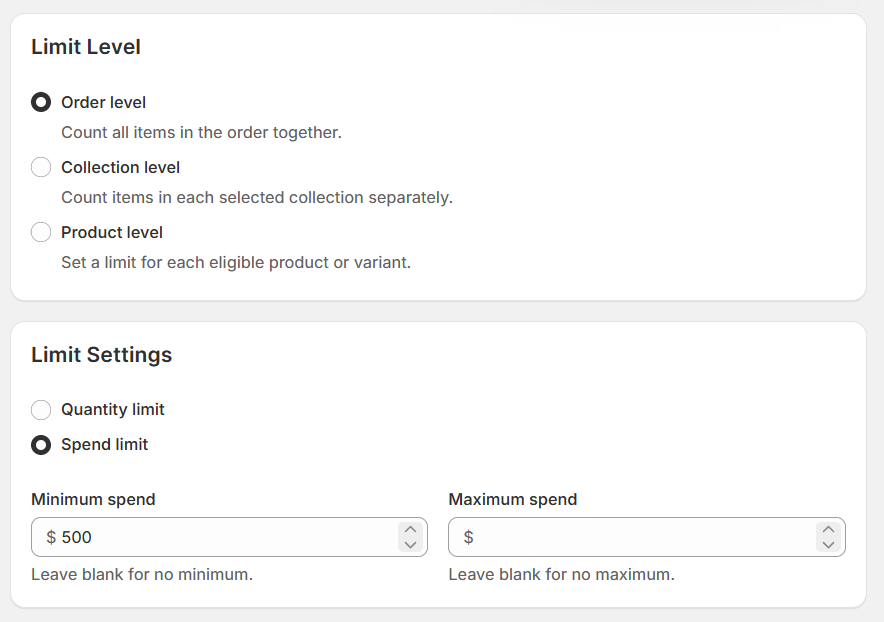
Select Order level to count all items in the order together.
In Limit Settings, choose:
- Quantity limit: set limits based on the number of items.
- Spend limit: set limits based on the amount spent.
Enter the minimum, maximum, or both. Leave a minimum blank for no minimum, or a maximum blank for no maximum.
The example selects Spend limit with a Minimum spend of $500 and no maximum. This sets a $500 minimum for the order as a whole.
Collection level
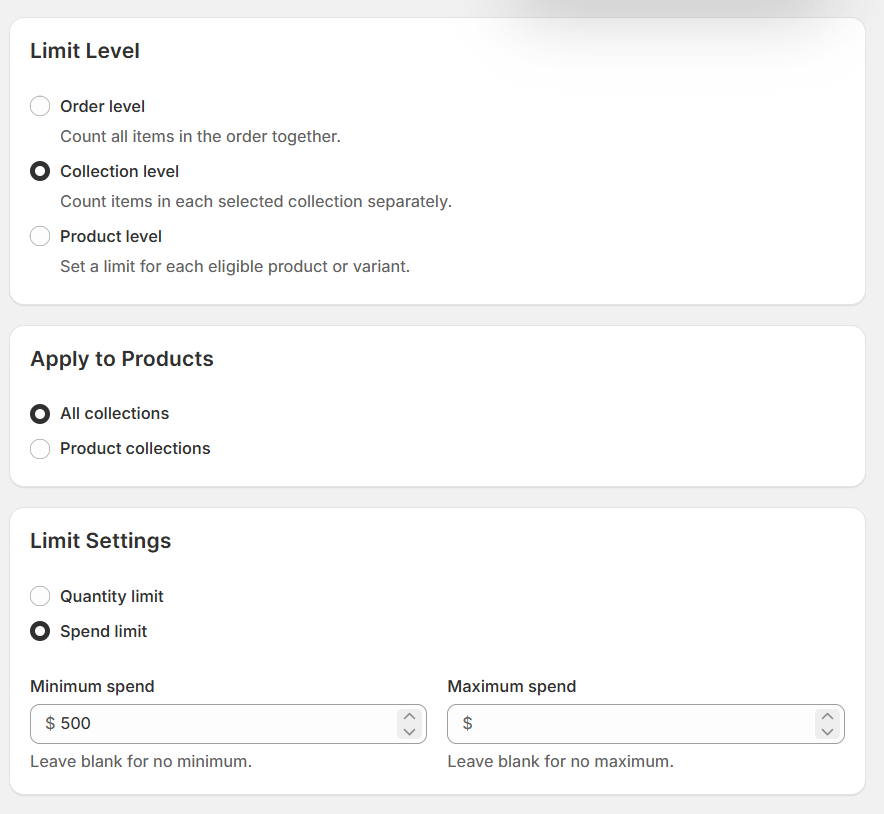
Select Collection level to count items in each selected collection separately.
Under Apply to Products, choose All collections, or select Product collections and choose the collections you want to include.
Then choose Quantity limit or Spend limit and enter the minimum and maximum you need. Leave either field blank if you do not need that boundary.
The example uses a $500 minimum spend with no maximum. At collection level, the limit is checked separately for each selected collection.
Product level
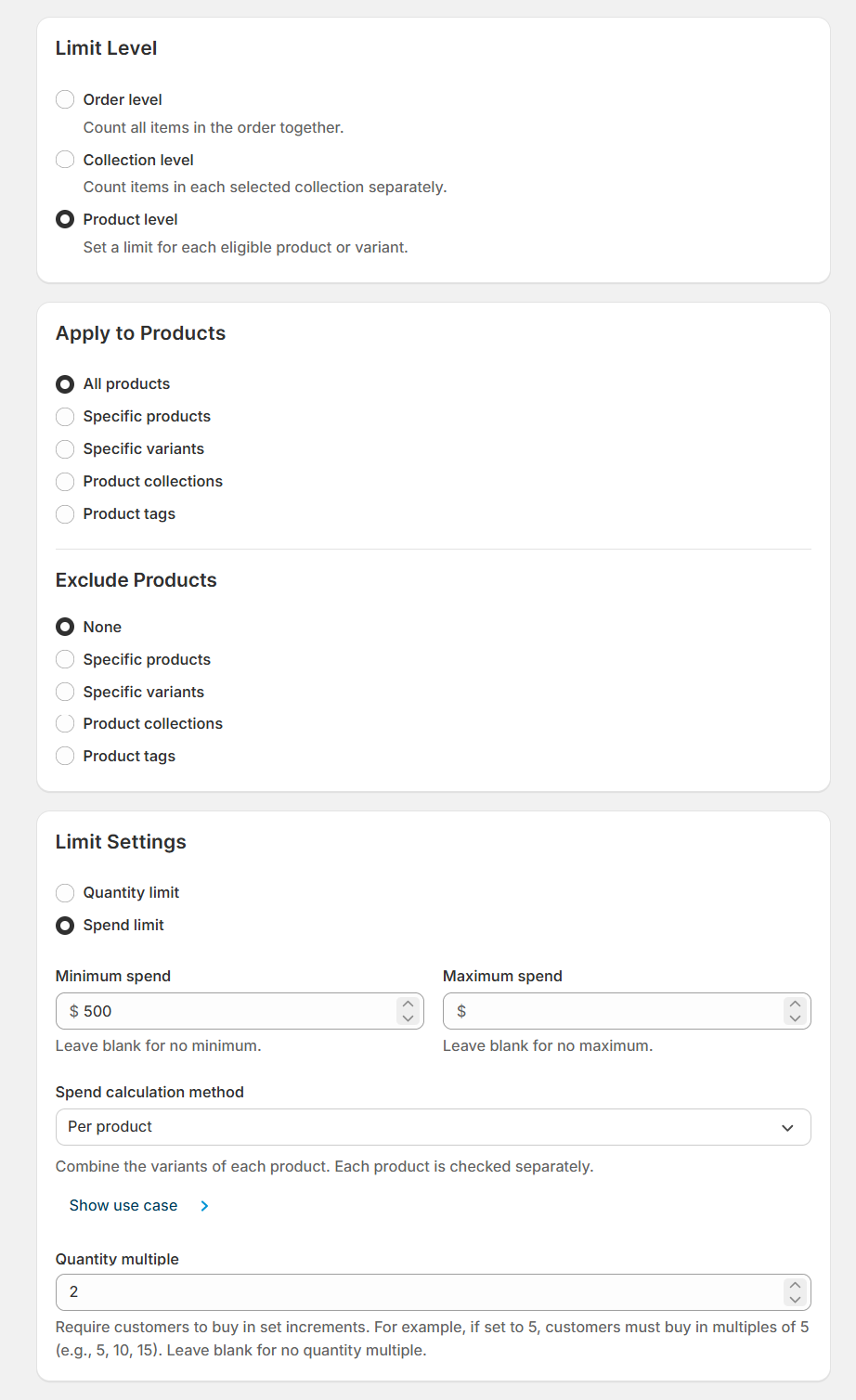
Select Product level to set a limit for each eligible product or variant.
Apply to Products
Choose which items the rule covers:
- All products: includes your entire catalog.
- Specific products: includes selected products.
- Specific variants: includes only selected variants.
- Product collections: includes products in selected collections.
- Product tags: includes products with selected tags.
After choosing a targeted option, select the products, variants, collections, or tags to include.
Exclude Products
Keep None if you do not need exceptions. Otherwise, choose specific products, variants, collections, or tags to exclude. Excluded items are left out of this rule.
Product limit settings
Choose Quantity limit or Spend limit, then enter the minimum, maximum, or both.
For spend limits, use Spend calculation method to choose how purchases are counted. The example selects Per product, which combines the variants of each product and checks each product separately. Open Show use case for an explanation of the selected method.
Use Quantity multiple to require purchases in set increments. For example, 2 means quantities such as 2, 4, or 6. Leave it blank if you do not need a quantity multiple.
The example combines a $500 minimum spend per product, no maximum spend, and a quantity multiple of 2. The quantity increment applies alongside the spend limit.
6. Choose when the rule applies
Start without a schedule
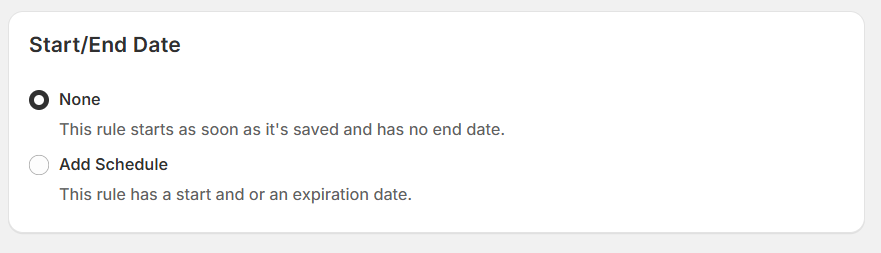
Select None under Start/End Date for a rule that has no scheduled end. It can apply as soon as it is saved as Active. A Draft rule does not apply to customers.
Set a start or end date
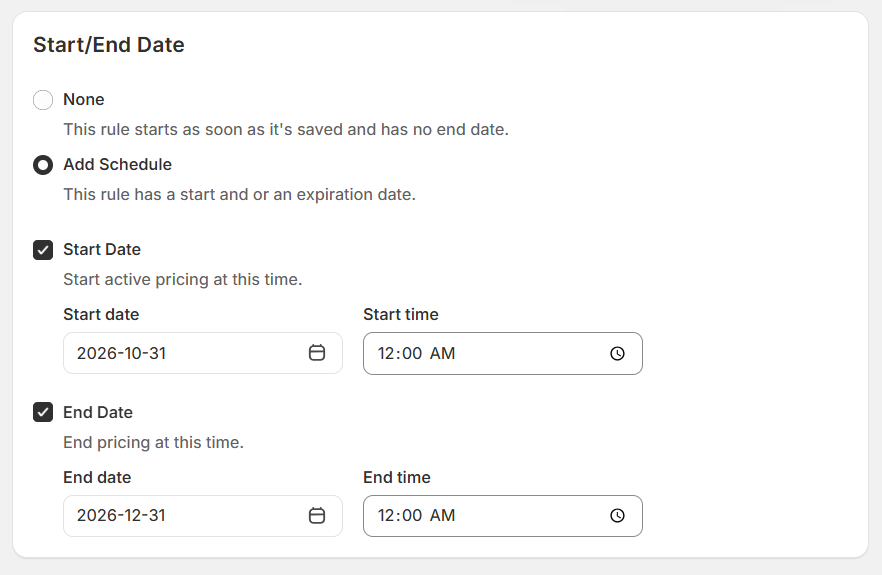
Select Add Schedule, then enable the dates you need:
- Check Start Date to choose when the limits begin. Enter the start date and time.
- Check End Date to choose when it stops. Enter the end date and time.
- If you use both, make sure the end is later than the start.
You can use only a start date, only an end date, or both. Follow the store timezone shown by the app. In this example, the rule starts on October 31, 2026 at 12:00 AM and ends on December 31, 2026 at 12:00 AM—the beginning of that day.
7. Save your rule
Click Save. Draft saves without publishing; Active saves and publishes the rule according to your schedule.
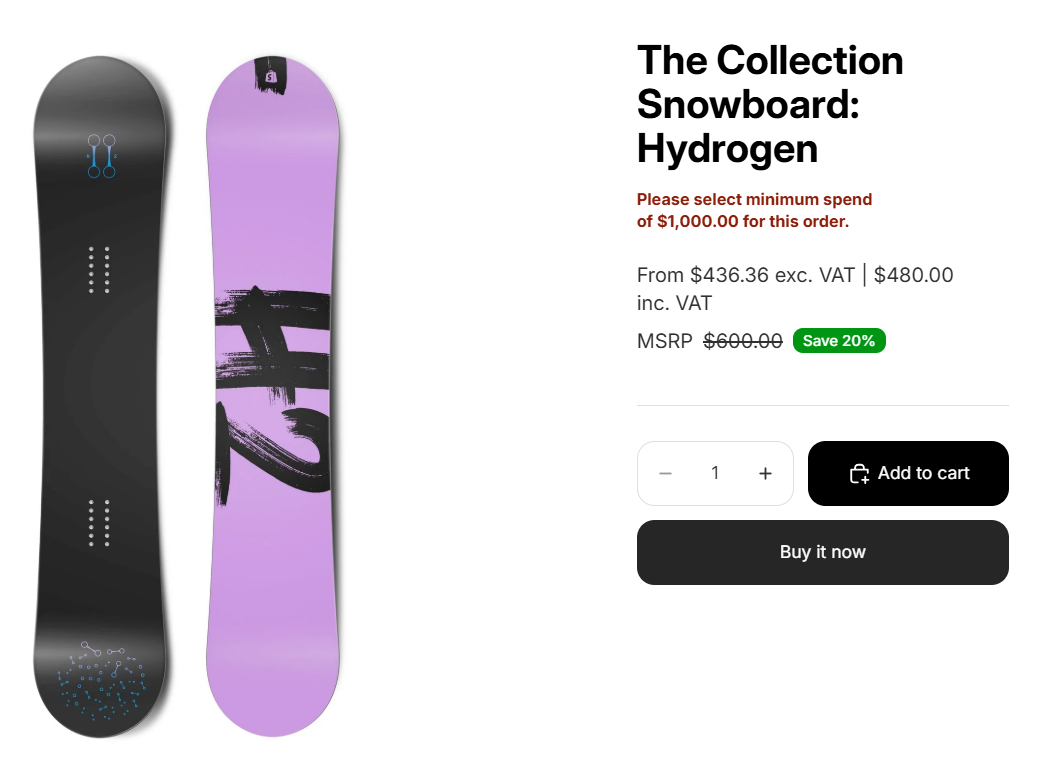
On the product page
Here is an example of an order limit warning on a product page. This storefront example uses a $1,000 minimum order spend. The message appears near the product price to explain the requirement before the customer adds the item to their cart.
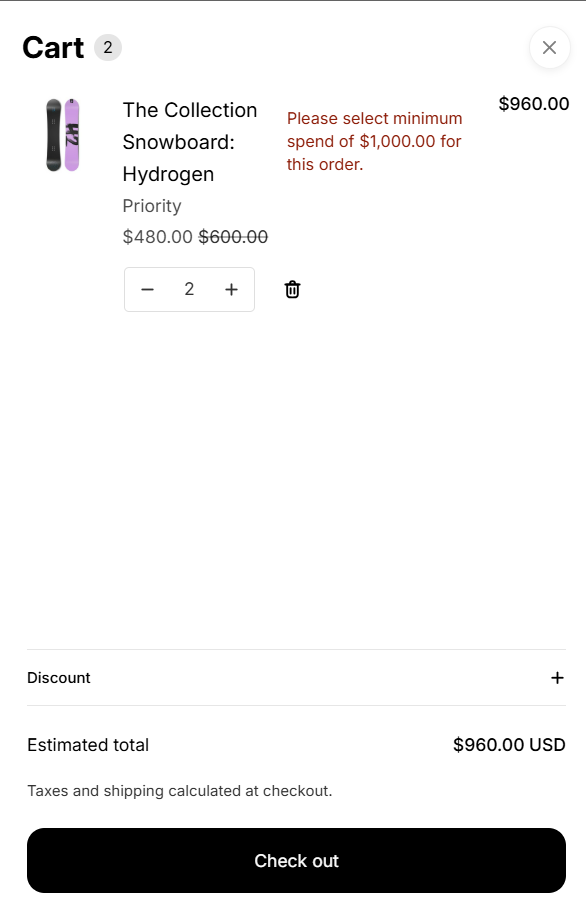
In the cart
The example shows two items at $480 each, with an estimated total of $960. The cart displays the $1,000 minimum spend warning because the order is still below the required amount.
If multiple rules match, set their priority. To change guidance colors or messages, follow How to customize order limits.