
How to apply wholesale pricing in POS terminal
Enable Lumi's POS actions and apply wholesale pricing to your cart or an individual item.
1. Open POS Pricing
In Lumi, open Order Management POS Pricing and click Set Up POS Pricing. Make sure your wholesale pricing rules are set up first.
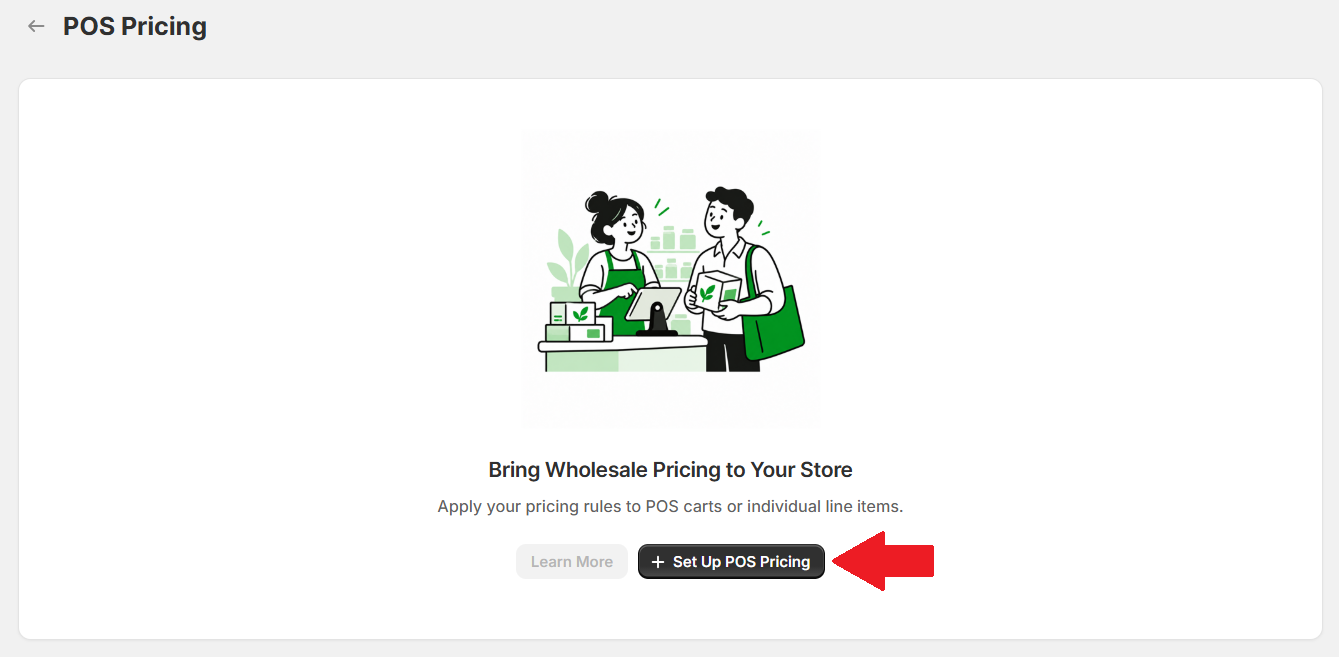
In the popup, click Open POS setup.
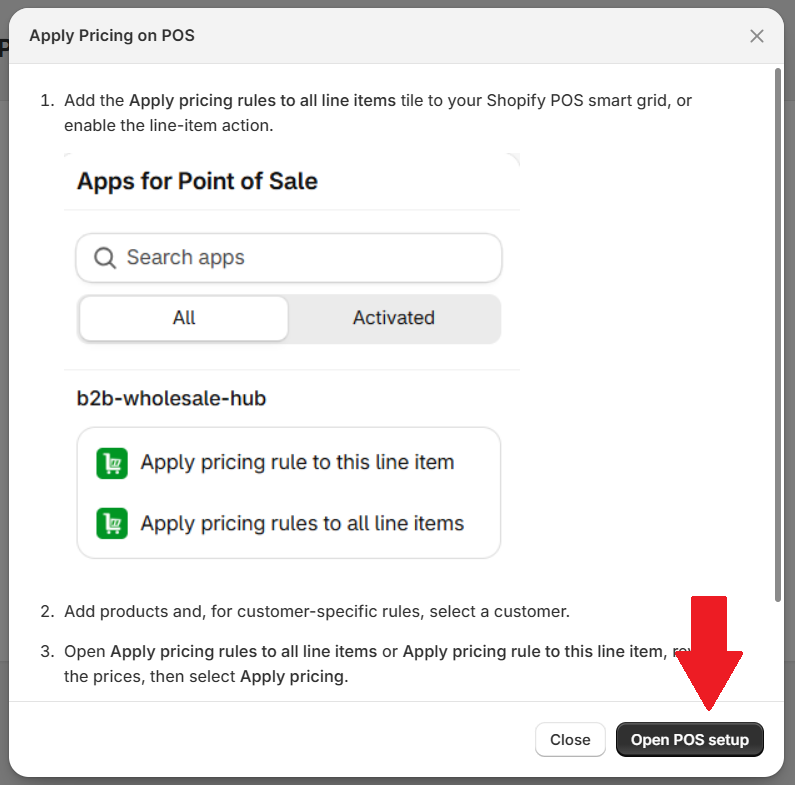
2. Enable the pricing actions
Under Apps for Point of Sale, find Lumi’s pricing actions:
- Apply pricing rules to all line items: apply eligible pricing across the cart.
- Apply pricing rule to this line item: apply eligible pricing to one selected item.
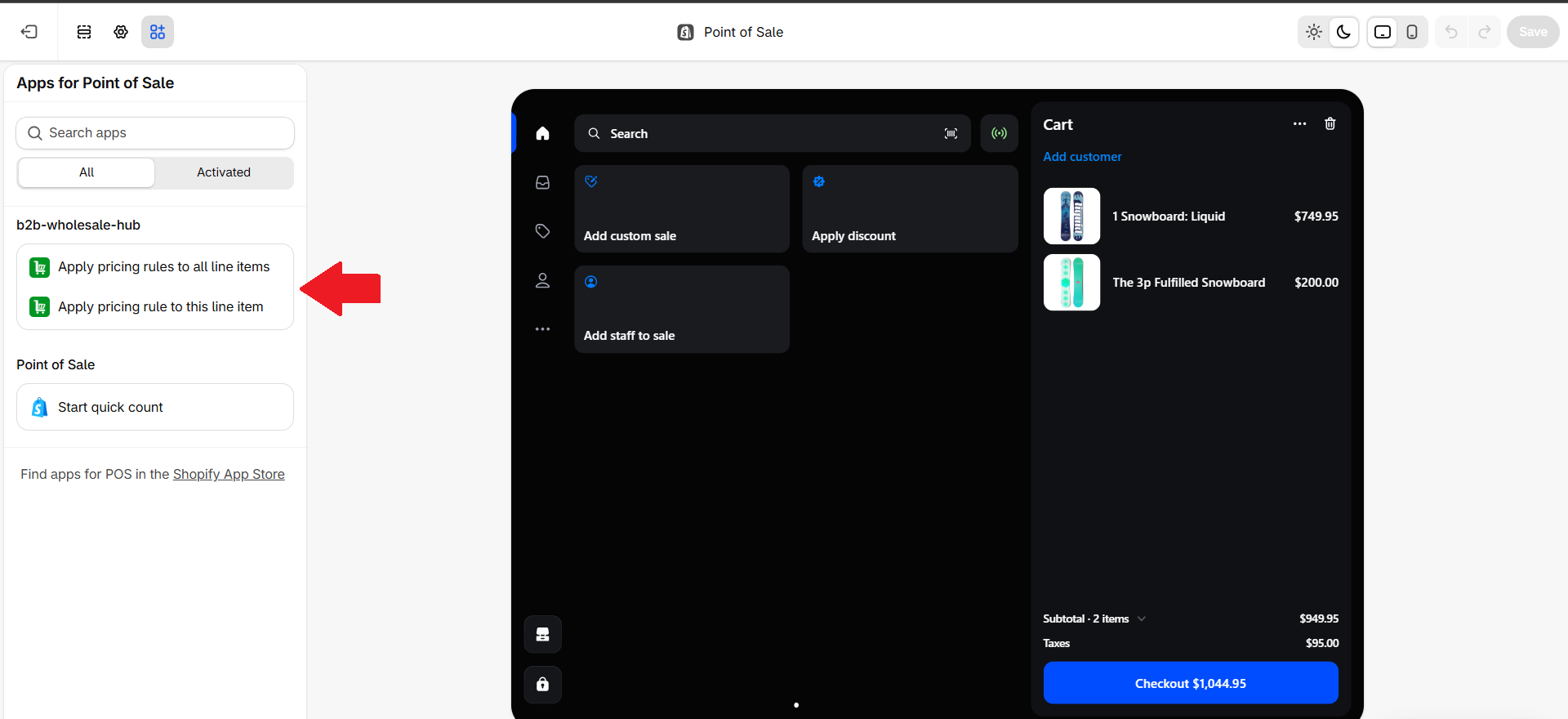
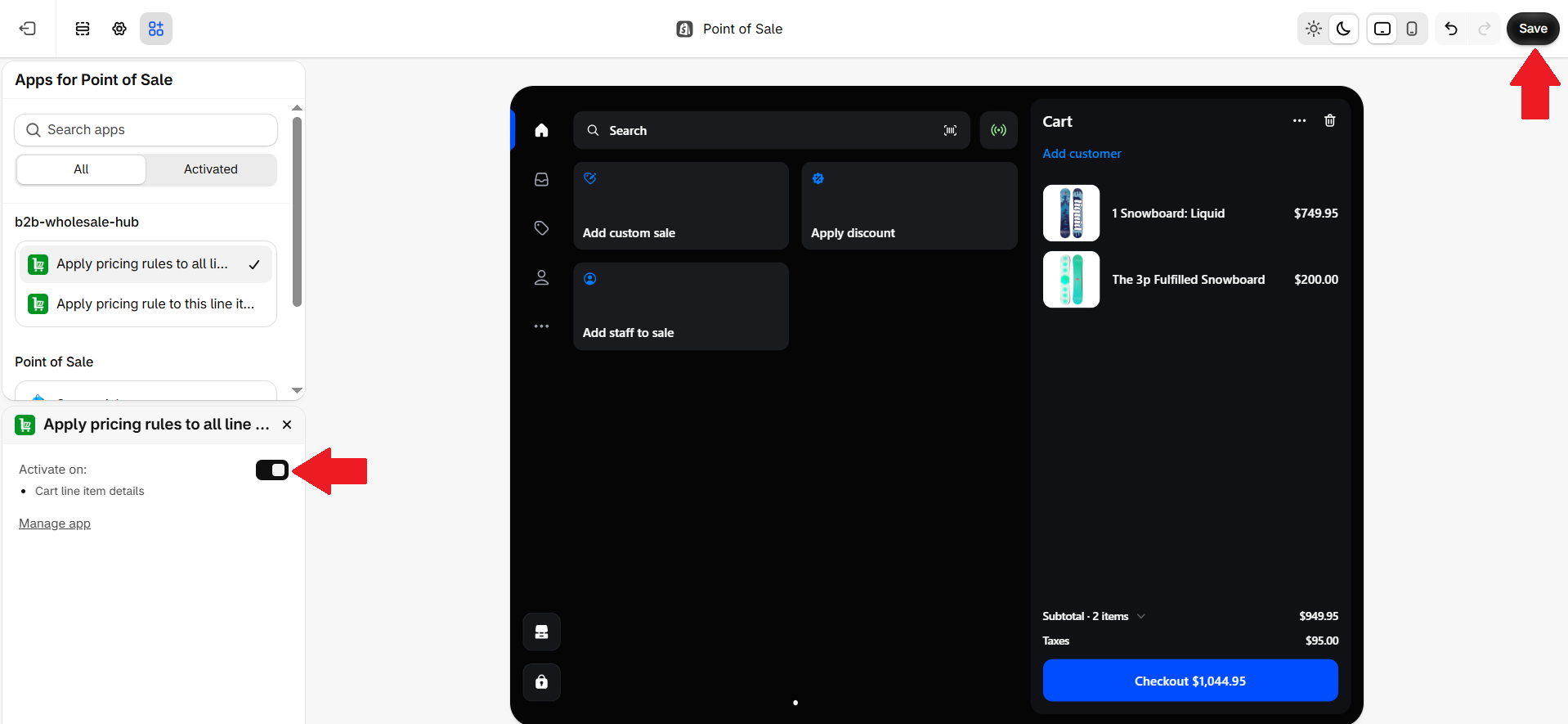
Select the action you want to use, turn on its Activate on toggle, and click Save. Repeat for the other action if needed.
3. Apply wholesale pricing in POS
- In Shopify POS, add products to the cart and set their quantities. Select a customer for customer-specific pricing rules.
- Open Apply pricing rules to all line items, or select an item and open Apply pricing rule to this line item.
- Review the prices, then select Apply pricing.
You can also add Apply pricing rules to all line items to your POS smart grid for quick access.