
How to set priority
Choose which net payment term rule takes precedence when more than one rule matches a customer and product.
1. Open Set priority
Open Order Management Net Payment Terms in Lumi, then select Set priority above the rules list.
The Priority column shows each rule’s current position. Lower numbers take precedence: 0 is the highest priority, followed by 1, 2, and so on.
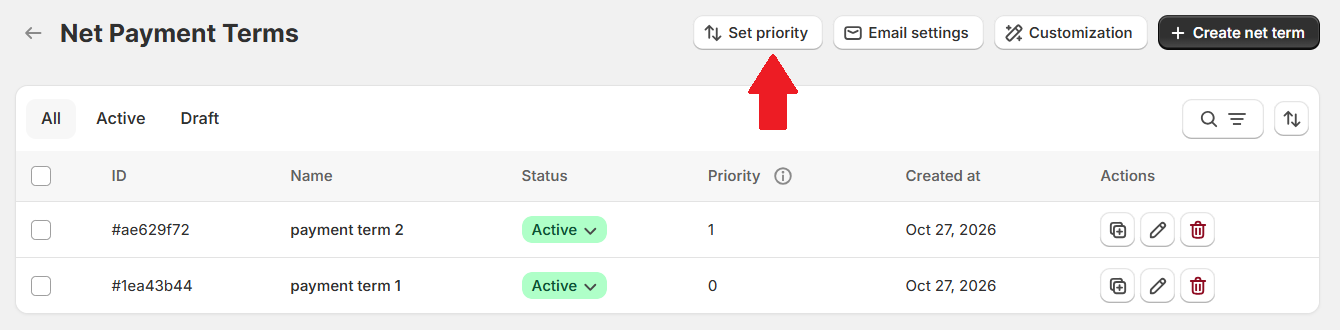
2. Arrange your rules
Place the rule you want considered first at the top. You can:
- Drag the handle on the left of a rule to move it.
- Use the up or down arrow beside a rule to move it one position.
Follow the example
The example shows payment term 1 at priority 0 and payment term 2 at priority 1. If both rules match, payment term 1 takes precedence.
To use payment term 2 first, move it above payment term 1 so that its priority becomes 0.
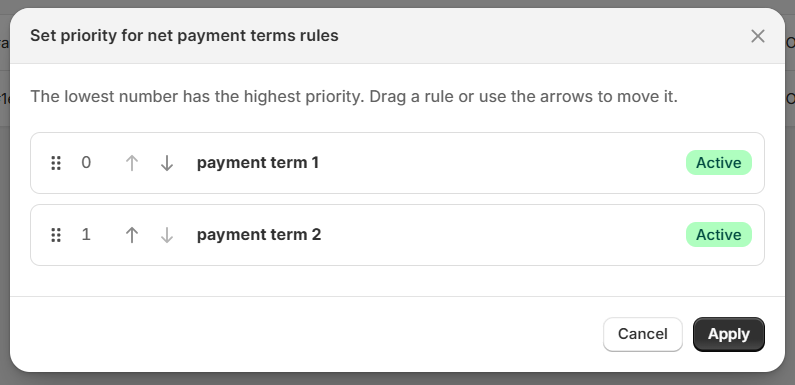
3. Save the priority order
Click Apply to save the order, or Cancel to leave it unchanged.
Priority only resolves overlapping eligible rules. A rule must still match its customer, product targeting, order conditions, status, and schedule requirements. Moving a Draft rule to the top does not activate it.